
Installation
Install Holy Resource and complete a clean first launch.
Holy Resource is available on Windows, macOS, Linux, Android, and iOS. Installation is local to the device. Your first launch then walks you through license validation or free mode, church setup, and account creation.
Use an internet connection on first launch when possible
Paid-license validation, owner verification, invite redemption, update checks, and some join flows work best online the first time. After setup, Holy Resource is designed to continue operating locally.
Download the Installer
Get the latest release from the official download page.
The download page automatically prioritizes the best match for your current device, OS, and architecture, and it also exposes previous releases when they are available.
Current Installer Types
- Windows:
.exeinstaller or.msipackage. - macOS:
.dmginstaller, and.pkgwhen published for that release. - Linux:
.deband.rpmpackages. - Android:
.apkpackage, and.aabwhen that release includes a Play Store bundle. - iOS:
.ipapackage when published for that release.
If you are installing for a church that is moving from another machine, export a full backup from the old device first.
Run the Setup
Once the download is complete, open the file to begin the installation process.
- Windows: Run the
.exeor.msi, review the Terms of Use, and follow the setup wizard. Depending on the bundle and machine state, required runtime components such as WebView2 may also be installed. - macOS: Open the
.dmg, move Holy Resource into Applications, then launch it from Applications. - Linux: Install the package that matches your distribution family, such as
.debfor Debian/Ubuntu or.rpmfor Fedora/RHEL. - Android: Open the
.apkon the device and approve install from your browser or files app if Android asks. - iOS: Open the iOS package for that release and follow the install prompts shown on your iPhone or iPad.
Updating or reinstalling on the same device
A normal upgrade or in-place reinstall on the same device keeps Holy Resource's local data by default. The app stores its working database and local encrypted material in the device's app-data folders, separate from the app install folder, so an updated installer normally keeps using the same local data and can still open the existing encrypted records.
This is different from moving to a new computer. If someone intentionally deletes local app data during uninstall, wipes the device profile, or replaces the machine entirely, restore from backup on the target device instead. If an app update itself fails, use the recovery steps in Backups & Recovery.
Complete First Launch
When Holy Resource opens for the first time, onboarding begins.
- Enter your paid license key, or continue in Free mode.
- If the license is unclaimed, onboarding continues in owner claim flow.
- If the license already has a super admin on another device, onboarding switches to Join and asks for an invite code.
- In Claim and Free mode, enter church details and create the first local account for this device.
- In Join mode, redeem the invite, verify the code sent to the invite email, then create or recover the local account that will sign in on this device.
See First Launch & Onboarding for the full setup flow.
Security Prompts
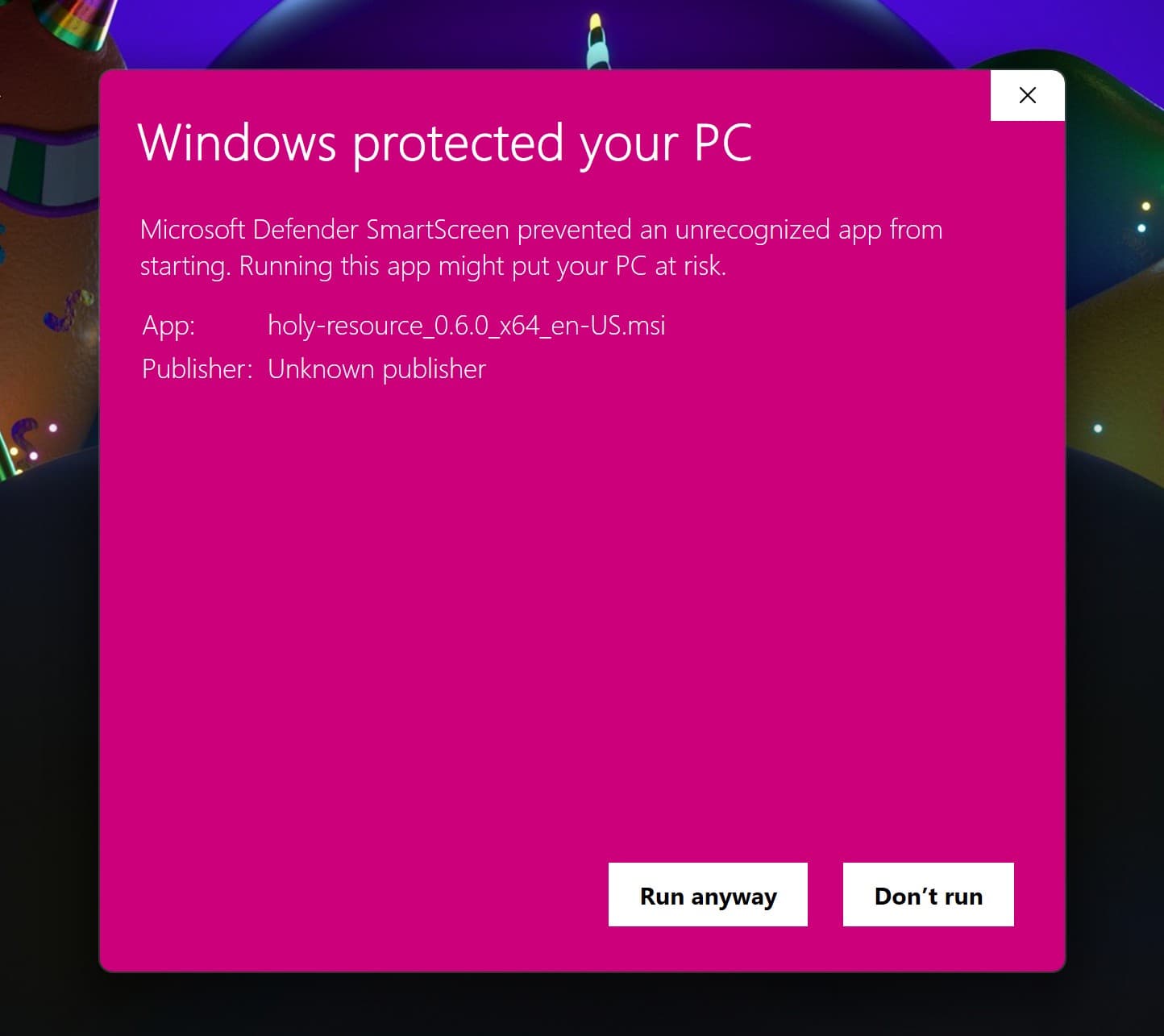
Desktop operating systems may still show trust or reputation prompts, especially on first launch or when running a newly downloaded build.
- Windows: Click "More info" then "Run anyway".
- macOS: Go to System Settings → Privacy & Security → "Open Anyway" if Gatekeeper blocks the app.
- Linux: Some environments require you to trust or approve newly installed packages before first launch.
If macOS blocks Holy Resource after it has already been moved into Applications, use the fallback steps shown on the download page.
Before You Install
Prepare these items before first launch:
- your church name and primary church email
- the paid license key, if this device will use paid mode
- the owner email used at checkout, if you expect to claim or recover ownership
- an invite code, if this device is joining an already claimed license
- access to the invite recipient email inbox, if this device is joining with a license invite
- the existing password for that email, if you expect to recover a saved account during paid-license onboarding
- a current backup, if you are replacing or migrating from another device
System Requirements
Holy Resource is lightweight for day-to-day church admin, but the real requirement depends on database size, imports, backups, sync usage, and how much other software is open on the same machine.
Practical baseline for most churches:
- OS: Windows 10/11 (64-bit), macOS 11+, or a current 64-bit Linux desktop distro with WebKitGTK support.
- CPU: Modern 64-bit dual-core processor or better.
- RAM: 4GB can work for light single-user use. 8GB or more is recommended for normal office use, larger databases, imports, backups, and multi-tasking.
- Storage: Keep at least 1GB free for the app and runtime components, plus extra room for the local database, automatic upgrade backups, exports, and manual backups.
- Network: Internet is recommended on first launch and required for paid-license validation, invite redemption, update downloads, server sync, and any WebView2 download the Windows installer needs.
Platform notes:
- Windows: Holy Resource requires the Microsoft Edge WebView2 runtime. The installer checks for it and can install or update it when needed.
- Linux: Use a normal desktop environment, not a minimal server-only install. Package requirements can vary slightly by distribution family.
Moving to a New Computer
Installation does not automatically move your local database from an old machine.
- Export a full backup on the old device.
- Install Holy Resource on the new device.
- Complete the correct license flow: claim, recovery, transfer, or invite join.
- Restore your data after the new device is ready.
If ownership or device access is involved, review Licensing before you switch machines.
FAQ
Can we try Holy Resource before we commit?
Yes. You can install Holy Resource, continue in Free mode, and let your team see how it fits your real workflow before you decide to activate a paid license.
Will setup turn into a long IT project?
Usually no. If you already have your church name, main email, and any license or invite details ready, most churches can get through first launch quickly and start learning the app right away.
What if we are replacing another computer or starting with existing data?
You do not need to start from scratch. Export a full backup from the old device, install Holy Resource on the new one, complete the right license flow, and restore the backup when the new device is ready.